
How to switch focus between monitors on a Mac (without clicking)
Typing into the wrong window on your second screen? Built-in Mac shortcuts, focus-follows-mouse options, split-pane keys, and a way to let your eyes do it.
You glance at your second monitor, start typing, and the words land in the window you just left. Or you look at the other half of a split terminal and your command runs in the wrong pane. If you work on more than one screen, it happens all the time, and it's always the same small detour: reach for the mouse, click, then type.
Here's why it happens and every practical way to get the keyboard where you want it, from the shortcuts already on your Mac to letting the window you look at take the keyboard by itself.
The short answer
| If you want to… | Use |
|---|---|
| Switch between windows of the same app | ⌘` (Command–Grave accent) |
| Switch to another app | ⌘Tab |
| Move focus to the active or next window | ⌃F4 (turn it on in Keyboard Shortcuts if needed) |
| Move between split panes in iTerm2 | ⌥⌘ + arrow keys, or ⌘[ and ⌘] |
| Move between editor groups in VS Code | ⌘1, ⌘2, ⌘3…, or ⌘K then ⌘ + arrow key |
| Focus whatever is under the pointer | Focus follows mouse in iTerm2 or Terminal, or AutoRaise for every app |
| Focus whatever you're looking at | Swivel, our menu bar app |
Why your typing lands in the wrong window
macOS sends your keystrokes to one window: the front window of the active app, usually the one you last clicked or switched to. Moving the pointer to another display doesn't change it, and neither does looking there. With two or three screens, the window you're reading and the window that's listening drift apart, and nothing on screen warns you until the text appears in the wrong place.
So every way of fixing it comes down to the same thing: telling macOS which window should have the keyboard, with a key, the mouse, or your eyes.
Option 1: keyboard shortcuts built into macOS
Apple lists these in its Mac keyboard shortcuts guide:
- ⌘Tab switches to the next most recently used app. Keep holding ⌘ and press Tab again to go further back.
- ⌘` (Command and the key above Tab) switches between the windows of the app you're using, for example two Safari windows on two screens.
- ⌃F4 moves focus to the active window or the next window. On some keyboards you also need to hold Fn. You can check and change these under System Settings › Keyboard › Keyboard Shortcuts… › Keyboard.
They're fast once they're in your fingers. The catch is that they cycle through windows in an order that has nothing to do with where your screens are, so the window you want is sometimes one or two presses away.
Option 2: let focus follow the mouse
On some systems the window under the pointer gets the keyboard automatically. macOS doesn't do this, but you can get it for some apps or for all of them:
- iTerm2: turn on Settings › Pointer › Focus follows mouse. In iTerm2's words, "moving the mouse over an inactive window will cause it to receive keyboard focus." It applies to iTerm2's own windows and split panes.
- Terminal: Apple's Terminal has a hidden setting for the same thing. Run this, then quit and reopen Terminal:
``sh defaults write com.apple.Terminal FocusFollowsMouse -bool true ``
To turn it off again: defaults delete com.apple.Terminal FocusFollowsMouse. It only affects Terminal windows.
- Every app: AutoRaise is a free, open-source utility that raises and focuses the window you hover over, across all apps.
The trade-off: you still have to move the mouse there, and every time the pointer drifts across another window on its way somewhere, focus goes with it.
Option 3: switching split panes from the keyboard
Split terminals and editors have their own shortcuts for moving between panes:
- iTerm2: "You can navigate among split panes with cmd-opt-arrow or cmd-[ and cmd-]," from iTerm2's documentation. The same commands are under Window › Select Split Pane.
- VS Code: ⌘1, ⌘2, ⌘3 jump to editor group 1, 2, 3, and ⌘K followed by ⌘←, ⌘→, ⌘↑ or ⌘↓ moves to the group in that direction. You'll find them under Go › Switch Group.
These are the defaults. If you've remapped keys, the menus show what yours are.
Option 4: let your eyes do it
We made Swivel because none of the above matches what you're actually doing: you've already looked at the window you want to type in. Swivel is a menu bar app that uses your Mac's camera to notice which screen, window or split pane you're facing, and gives it the keyboard.
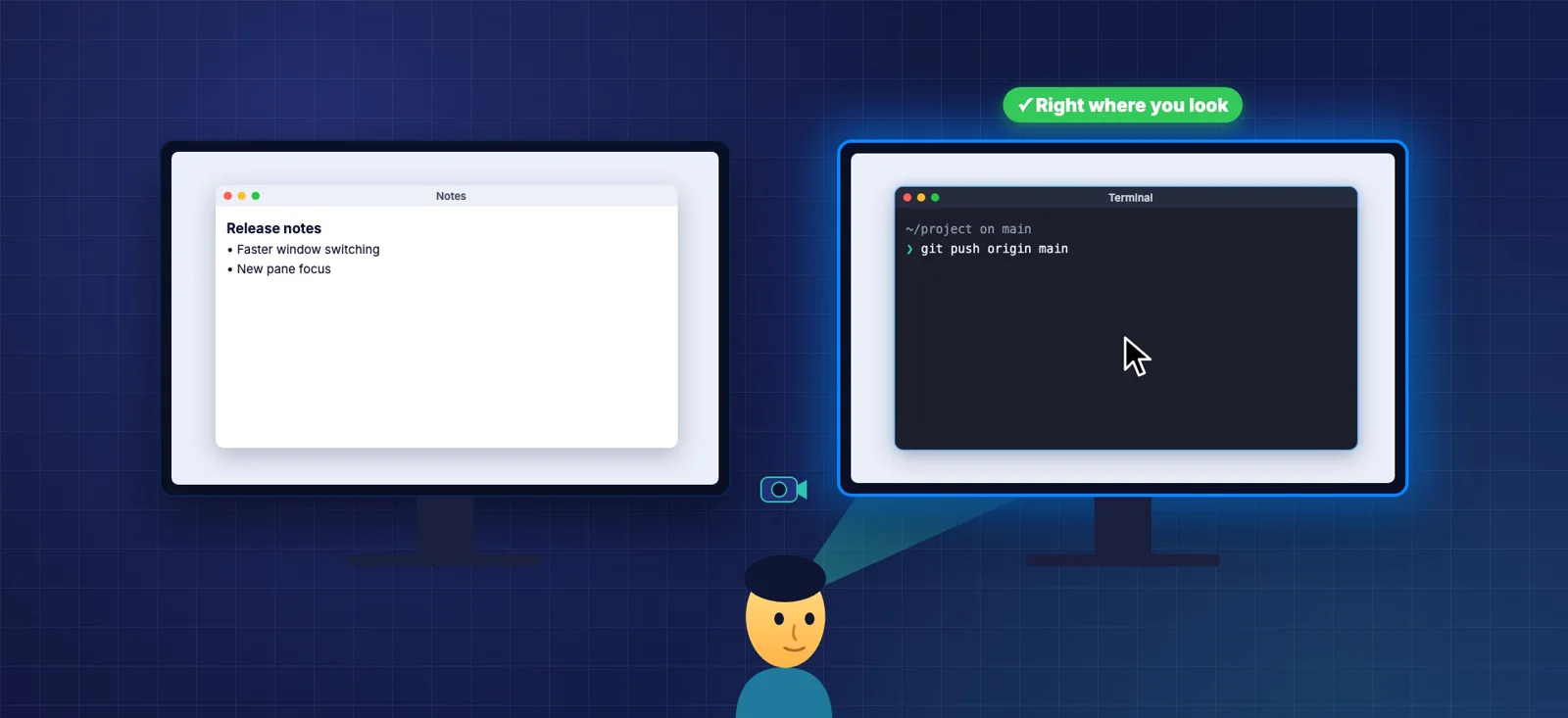
- Screens: turn your head towards another display and focus moves there after a short delay (300 ms by default), with the pointer. Quick glances don't count.
- Windows and panes: on the same screen, it focuses the window you look at, and the split pane in iTerm2, Terminal, Ghostty, Warp, kitty, WezTerm, VS Code, Cursor, Zed, Xcode, JetBrains IDEs and others. Other apps switch as whole windows.
- Out of the way: it waits while you type or use the mouse, so glancing at another pane to read doesn't steal your keystrokes. It never moves focus away from apps you exclude, and ⇧⌘G pauses it.
- Setup: a calibration called Lock-on, about 20 seconds per screen. After that it keeps learning from where you click.
- Privacy: camera frames are analyzed in memory on your Mac with Apple's Vision framework, and never saved or sent anywhere.
It's built to pick the right screen, window or pane, not to place a cursor, and it needs a camera that can see your face. It runs on macOS 14 or later, and you can try it free for 3 days; after that it's a one-time $12.99 for 2 Macs. There's a 60-second video on its page.
Which one should you use?
| Your setup | Try |
|---|---|
| You live on the keyboard and switch apps more than screens | ⌘Tab and ⌘` |
| You mostly work in split terminals or editor groups | The pane shortcuts above |
| Your hand is on the mouse anyway | Focus follows mouse (iTerm2, Terminal, or AutoRaise) |
| Your eyes move between screens and panes all day | Swivel |
Pick one way of moving focus automatically. Running two at once, such as focus follows mouse and Swivel, makes them fight over the window. The keyboard shortcuts work alongside any of them.
For more small Mac fixes, see how to keep your Mac awake without changing your settings.